Search

Search tools, categories, jobs, and tasks

© 2026 Every Digital Tools. Todos los derechos reservados.

Descubre Herramientas IA

Descubre Herramientas Digitales

Explorar

Herramientas IA

Herramientas Digitales

Profesiones

Tareas

Leaderboard

Acerca de

Sobre Nosotros

Blog

Preguntas Frecuentes

Legal

Terms and Conditions

Privacy Policy

Affiliate Disclosure

Homedigital tools
Ordenar simbolos

Ordenar simbolos

Pega texto y extrae caracteres de puntuacion y simbolos y los ordena por punto de codigo. Usa controles de ordenacion, coincidencia, duplicados, mayusculas/minusculas y salida de texto plano.

Based on 0 Reviews
0 Views

Overview

What is Sort Symbols?

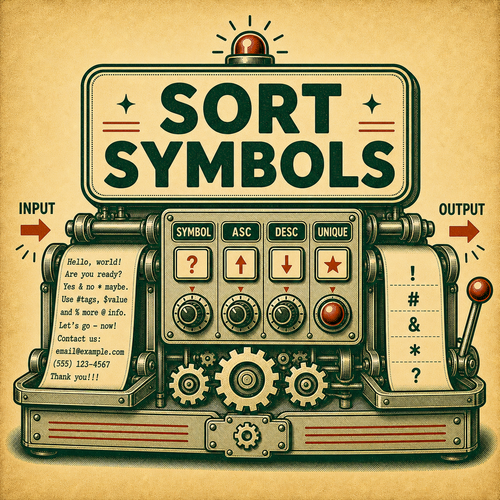
Sort Symbols is a text tool that extracts punctuation and symbol characters and sorts them by code point. It helps when you need to reorganize or reduce pasted text without moving every item manually.

The mode works on a specific unit: lines, words, sentences, paragraphs, or symbols. Choosing the correct unit is the most important step. A list of values usually works best as lines. A block of prose may need sentences or paragraphs. A bag of loose terms usually works best as words.

The tool is literal. It does not interpret the meaning of the content, correct grammar, validate data, or upload files. It splits the text according to the mode unit, applies the sort or filter operation, and shows plain-text output.

Example: A! b? c# can become !#?. Before copying a long output, check whether the mode split matches the real shape of your text.

This kind of tool is especially helpful when text comes from several sources. You can sort values before pasting into a spreadsheet, filter lines containing a term, clean repeated lists, review blocks of notes, or prepare classroom examples. The preview gives you a chance to adjust before copying.

It is also useful when the next step expects text in a more predictable order. Alphabetized items are easier to scan. Length sorting can reveal unusually long entries. Filtering can separate useful lines from noise. Duplicate removal can make a list easier to compare. The tool does not decide what is important, but it gives you a controlled way to reshape the text before the next task.

Because the output is plain text, it works well as a bridge between messy copy and another app. You can paste from notes, logs, forms, documents, emails, classroom material, or simple data exports, then copy the cleaned result into the place where the final work happens.

UnitBest forWatch for
LinesLists, rows, logs, and separated notes.Blank lines or extra spaces.
WordsLoose terms and labels.Punctuation attached to words.
SentencesDraft prose and writing examples.Abbreviations and punctuation.
ParagraphsBlocks separated by blank lines.Paragraphs without clear separators.

How Sort Symbols works

The page uses the shared Sorting & Filtering transform engine. The row should map to content.type: sorting-filtering and content.mode: sortSymbols, which opens this exact mode by default.

Symbol mode extracts characters that are not letters, numbers, or whitespace. It sorts by symbol code point and joins without spaces.

Sorting can be ascending or descending. Remove duplicates keeps the first occurrence and uses case-sensitive or case-insensitive comparison based on the switch. Numeric sorting uses parseFloat and places non-numeric values after numeric values.

The widget runs in the browser with sample, paste, clear, use output as input, download as .txt, and copy controls. Input is capped at 50,000 characters and output at 200,000 characters.

Output keeps the natural separator for the mode: lines with line breaks, words with spaces, sentences with spaces, paragraphs with blank lines, and symbols with no spaces.

Sorting and filtering are reversible only if you keep the original somewhere. Once a list is sorted, the old order is no longer visible in the output. Once items are filtered out, they are no longer present in the result. For important material, copy the original into a note or use the tool on a duplicate block.

Sort Symbols examples

Sort Symbols is useful when you already know which part of the text you want to keep or reorganize. If sorting, decide whether the criterion should be alphabetical, numeric, or length. If filtering, decide whether the pattern should appear anywhere, at the start, at the end, or as a regular expression.

An analyst can sort copied lists before pasting into a sheet. An editor can filter sentences containing a review term. A teacher can alphabetize vocabulary terms. A developer can filter lines from notes. Because output is plain text, it can move easily to another app.

For important work, test with a small sample first. If the result looks right, paste the full block. This review step avoids surprises from punctuation, unclear paragraph breaks, or a pattern that matches too much.

A practical routine is to start with the simplest rule that could work. For filters, try Contains before Regex. For sorting, try alphabetical before numeric if the values are mixed. For dedupe, check whether capitalization should matter. Simple choices are easier to audit and easier to explain to someone else reviewing the output.

InputOutputNote
A! b? c#!#?Main example
zeta alpha betaalpha beta zetaAlphabetical word sort
apple
banana
apricot
apple
apricot
Pattern filter

Related text tools

Frequently Asked Questions

Who Uses Ordenar simbolos

WriterEditorData AnalystDeveloperTeacherContent Writer

Best Tasks for Ordenar simbolos

Sort DataFilter TextClean DataEdit ContentStandardize Data

Promote Ordenar simbolos

Featured on Every Digital Tools
E
everydigitaltoolsteam
Loading
@everydigitaltoolsteam

The official account for Every Digital Tools. We curate the best AI and digital tools for you.

No followers yet
5 Tools
View Profile
Transform mode

Extract every punctuation / symbol character and sort them alphabetically.

Order
Case sensitive
Remove duplicates
Nothing to sort
Input
51 / 50,000· 8 words · 8 lines
Output
0 chars · 0 lines